
Concat Video Editor Use Cases: From Raw Clips to Published
The Concat video editor is a free, open-source alternative to subscription editing apps, built on a native Rust engine with a GPU compositor. It covers the jobs creators actually open an editor for: auto-captions, text-to-speech, background removal, keyframe animation, effects, multi-track cutting and 4K export. There is no watermark stage, no account to register and no upload step, because every frame is decoded, composited and encoded on your own disk.
The hard part
Subscription Editors Got Expensive. The Concat Video Editor Did Not.
Hosted editors rarely raise the headline price. They move one capability at a time behind a tier, and the three below are the ones that move first. Each is written as a situation you have likely already hit rather than as a spec comparison.
Watermark removal moved behind a paywall
You finish a cut, press export, and find the clean render now costs a monthly fee. Paying once does not always settle it either, because gating can be re-applied to existing subscribers after an update. Installing the Concat video editor removes the whole question from your budgeting.
Unpublished footage sent to someone else's storage
Handing a rough cut to a cloud transcription or cutout service means unreleased material crosses a network you do not administer. Under an NDA that is not a preference, it is a blocker. Every frame on this kind of timeline stays on the disk it started on.
Professional suites heavier than the job
The usual free advice is a full finishing suite, which is excellent but also asks someone making a forty-second clip to learn colour management first. A shorter path matters more than a deeper one until the day you actually need the depth.
How it works
How the Concat Video Editor Takes a Folder of Clips to a Finished Export
Four moves take raw recordings to a publishable file. Nothing here requires an account, a project template or a cloud sync, so the sequence below is the whole workflow rather than a simplified demo version of it.
Install the Concat Video Editor Build That Matches Your Machine
Grab a release for macOS on Intel or Apple silicon, Windows on x86_64, Linux on x86_64 or ARM, or Android. Linux ships as .deb, .rpm, .AppImage, an Arch package and a Flatpak. Unsigned builds may trigger SmartScreen on Windows or a quarantine prompt on macOS, and both workarounds are documented in the project README rather than left for you to discover.
Import Footage, Audio and Still Frames
Drag clips, music beds, voice recordings and images straight onto a multi-track timeline, then use several timelines inside one project to keep a short teaser beside the long cut. Split, trim, ripple, merge, freeze frame and speed changes cover most structural edits, and proxies keep heavy sources responsive while you work inside the Concat video editor rather than waiting on a render.
Add Captions, Voices and Keyframes
Local Whisper writes a caption track you can edit word by word, local text-to-speech generates narration, and background removal works without handing footage to a third party. Keyframes drive position, scale, rotation, opacity, volume and effect parameters through a curve editor, and the effects render on the GPU so the preview matches the encode.
Export H.264, HEVC or AV1 From the Concat Video Editor
Pick a codec and a frame size, then render: masters up to 60fps in 10-bit colour are available in H.264, HEVC or AV1, with no branding layer bolted onto the output and no entitlement check before encoding starts. Recurring exports are better handed to the JSON-RPC API or the built-in MCP server, which can repeat the Concat video editor timeline on a schedule while you do something else.
What you can make
What You Can Create With the Concat Video Editor
Three output shapes account for most of what leaves a timeline. Each one stresses a different part of the pipeline, so knowing which you are making tells you which settings matter and which can stay at their defaults.
Vertical Shorts Built Around Burned-In Captions
A vertical short is decided in the first second and by whether the caption stays readable on a phone held at arm's length. Because the export carries no watermark, one file can go to three platforms without a cleanup pass, and burned-in text survives apps that strip soft subtitles.
Tutorials and Product Walkthroughs Cut in the Concat Video Editor
Documentation video is long and dense with interface text that must stay legible after platform re-encoding. Recording and exporting at 4K 60 in HEVC or AV1 preserves menu labels while keeping upload sizes reasonable, and keyframed zooms point at the control being described.
Interview Clips, Podcast Teasers and Audiograms
Spoken-word material is mostly an audio problem wearing a video costume. One switch denoises, enhances and levels loudness before you think about the frame, and multi-track audio lets a music bed sit under speech without flattening the voice.
Worked examples
Three Concat Video Editor Use Cases End to End
Each example below is a complete scenario rather than a screenshot: what the source material looked like, which parts of the toolchain did the work, and what was left to do once the render finished.
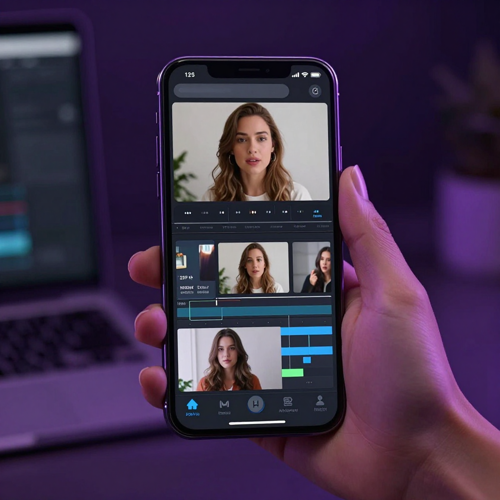
A Thirty-Second Vertical Clip With Captions
Source was three phone clips shot vertically. Local Whisper wrote the caption track, a preset title card carried the hook, and the export went straight to three platforms because the Concat video editor render had no branding to remove.
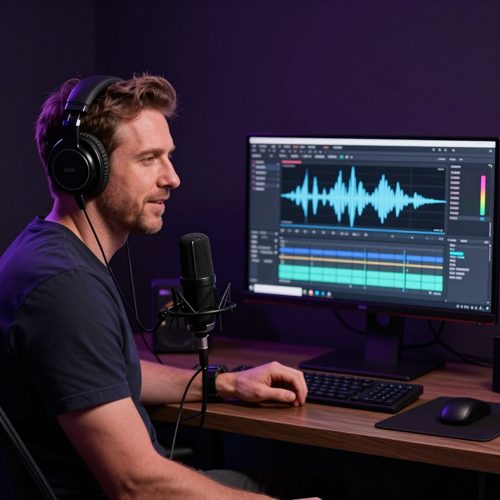
A Podcast Episode Cut Down to a Teaser
Source was a ninety-minute recording and a separate music bed. Loudness levelling came first, then a second timeline held a sixty-second teaser beside the full episode so both stayed editable together.
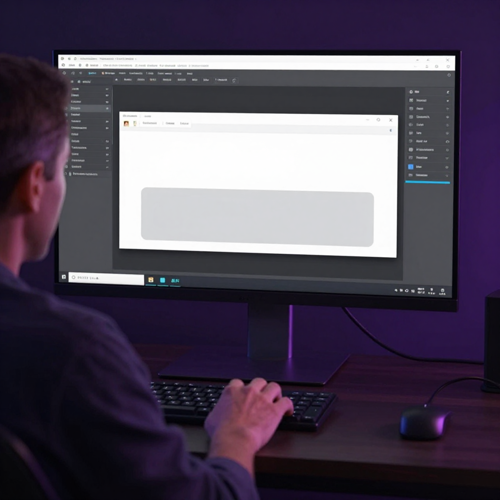
A Software Walkthrough Recorded at 4K
Source was a screen recording at 4K. Keyframed zooms highlighted each menu being discussed and titles on a background plate stayed readable over busy interface areas.
- Export
- 4K 60
- Licence
- AGPL
- Languages
- 25
- Effects
- 100
H.264, HEVC or AV1 with 10-bit colour
AGPL-3.0-or-later, source and models public
Interface translations shipped in the app
Effects, filters and transitions, GPU rendered
Why use it
Why Use the Concat Video Editor Instead of a Hosted Editor
Six differences decide whether a tool survives a real deadline. Each is written as the mechanism first and the payoff second, because the mechanism is what tells you whether the promise holds on your hardware rather than in a marketing screenshot.
No watermark stage exists to unlock
Watermark removal is often the exact feature that moves behind a paid tier once your workflow depends on it, and it can be re-gated after an update. A Concat video editor export has no branding stage at all, so the rendered file is the file you publish.
Captions run locally instead of metered
Uploading a rough cut to a transcription service means unreleased footage crosses a network you do not administer, and per-minute billing punishes iteration. Whisper runs on your own hardware, and you pick the model size to trade accuracy against speed.
Export ceilings in the Concat video editor are technical, not commercial
Free tiers often cap resolution or frame rate, quietly forcing a paid plan the moment a client asks for a master. Exports here reach 4K at 60 frames per second with 10-bit colour in H.264, HEVC or AV1, so the brief decides the spec rather than your billing tier.
Preview stays smooth on a GPU compositor
Preview stutter makes an editor feel slow long before export does. Compositing on the GPU with proxy workflows and hardware decode lets a heavy timeline scrub in real motion, so trim decisions are made against what the frame actually looks like.
Voices and cleanup without an API meter
Text-to-speech and voice cloning usually arrive as metered calls, which suits nobody who has to re-time a narration track twenty times. Local voices, cloning from seconds of audio and a single cleanup switch remove the cost of getting a line right.
Automation ships with the application
Batch work otherwise means repeating clicks late at night. A built-in MCP server started with concat --mcp and a JSON-RPC API let an agent or a scheduled job open a project, cut it and export it, which turns a weekly recut into something that runs unattended.
Model picker
Recommended Local Models on a Concat Video Editor Timeline
Caption accuracy, narration quality and cutout cleanliness each depend on a model that downloads once from Settings and then runs offline. Picking deliberately among them is most of the tuning work.
The smallest caption model in a Concat video editor project is the one to reach for when a rough cut needs transcription while you are still restructuring the timeline, because speed matters more than perfect punctuation at that stage.
The middle size is the practical default once the structure settles: it recovers names, numbers and technical terms noticeably better than the small model without the render-time drag of the largest download.
The largest caption download earns its disk space when accuracy is the deliverable, such as accessibility captions for published work or transcripts that will be quoted in documentation.
Local narration removes the round trip to a hosted voice API, so re-recording a line after a timing change costs nothing beyond the encode rather than another metered request.
Cloning from a few seconds of recorded audio lets you patch a fluffed sentence in a Concat video editor timeline without rebooking a studio session or shipping audio anywhere.
Removing a background locally keeps unreleased product footage inside your own network, which is usually the difference between passing an NDA review and not.
Agent briefs
Briefs You Can Hand to an Agent Driving the Concat Video Editor
Because a Concat video editor project can be scripted, a written brief becomes executable: state the source, the intended output shape and the constraints, and let the JSON-RPC API or MCP server do the clicking.
Weekly Vertical Clip Round-Up
Tutorial Chapter Split
Podcast Teaser Derivation
Client Review Round
Who benefits
Who Gets the Most Out of the Concat Video Editor
Three groups benefit most from a local, scriptable editor: one that publishes at volume, one that has to explain software, and one whose footage cannot leave its own network.
Independent Creators and Small Studios
Publishing several clips a week makes per-export watermarks and metered caption minutes expensive fast. Running the whole pipeline locally removes both constraints and lets one person handle output that previously needed a second pair of hands.
Product and Engineering Teams
Internal documentation rarely justifies a subscription, and unreleased interfaces should not sit on someone else's storage. A scriptable editor lets a team regenerate a walkthrough whenever the UI changes, straight from CI or a scheduled job.
Agencies Working Under NDA
Client material usually cannot be uploaded to a third-party transcription or cutout service at all. Keeping transcription and background removal on local hardware turns a compliance blocker into a footnote in the delivery note.
What people report
What People Report About the Concat Video Editor in Daily Use
Summarised from public editor and open-source threads rather than supplied as endorsements; read them as field notes, not as verified customer quotes.
Paying for a year and still getting a watermark on export was the moment I started looking. An editor whose export simply has no branding stage ends the argument before it starts.
Sending unreleased footage to a transcription service was never going to pass our NDA review. Captions that run on the machine itself let me keep the whole cut in one application.
I only needed captions and a couple of trims, and the professional suites wanted me to learn colour management first. Having a short path for a forty-second clip is the entire point.
FAQ
Ten Questions People Ask Before Installing the Concat Video Editor
The uncertainty is practical rather than theoretical: whether it is genuinely free, which platforms build today, what the local models demand from your hardware, and how stable a beta really is. The answers below come from the project README, release notes and licence text rather than guesswork.
Is the Concat video editor actually free?
Yes. The project is free and open source with no account, no subscription and no paywall, and there is no watermark tier to unlock or export resolution held back for paid plans. What you pay in is disk space for the build and, if you want captions, voices or cutout, a one-time model download in Settings.
Does the Concat video editor add a watermark to exports?
No. The README states plainly that there are no watermarks, no account and no paywall, and the export path has no branding stage to switch off. That matters because gating can otherwise be re-applied to existing subscribers after an update.
Do I need an account before exporting?
No account is required. You download a build, open it, drop footage in and export. Since nothing is uploaded, there is also no sign-in step between installing and a first render. If installing anything is the blocker, the equivalent job runs in a browser tab through Director on Textideo.
Which platforms does the Concat video editor build on today?
macOS on Intel and Apple silicon, Windows on x86_64, Linux on x86_64 and ARM, and Android are the supported targets, with Linux shipped as .deb, .rpm, .AppImage, an Arch package and a Flatpak. iOS and iPadOS exist but are sideloaded, and Windows ARM builds are currently paused.
How does the Concat video editor compare with CapCut?
CapCut is a mature hosted editor with cloud conveniences and a paid tier. The Concat video editor targets the same jobs, captions, voices, keyframes, effects, multi-track cutting and 4K export, without an account or an upload step, at the cost of being beta software with fewer cloud extras.
Can the Concat video editor export 4K?
Yes. Exports reach H.264, HEVC or AV1 at up to 4K and 60 frames per second with 10-bit colour. Resolution is not tied to a billing tier, so the decision is about delivery spec and file size rather than about which plan you are on.
What hardware do the local models need?
The editor itself runs on a native Rust engine with a GPU compositor. Caption, voice and cutout models download once and then run offline, so the practical requirement is enough disk for the size you pick plus enough GPU or CPU headroom to run it at a usable speed.
Can AI agents drive the Concat video editor?
They can. A built-in MCP server starts with concat --mcp, so clients such as Claude Code or Claude Desktop connect with one line of configuration. A JSON-RPC API covers scripts and services, and building from source adds gRPC and a command-line tool.
Is the Concat video editor stable enough for client work?
Treat it as beta. The project says plainly that it works but still has edges and invites reports. For billable work, cut one real project end to end first and keep your previous editor installed until an export has survived a full client review round.
What licence governs the Concat video editor?
It is published under AGPL-3.0-or-later, so the source, releases and bundled models can be inspected and redistributed under that copyleft. If you plan to modify and redistribute it, read the licence text before you ship anything built on top of it.
Explore more
Explore More Paths Through the Concat Video Editor
Start Your First Concat Video Editor Project Today
Read the licence line first, because it decides what you are allowed to ship. Under AGPL-3.0-or-later the source, releases and bundled models are yours to inspect and redistribute. Inside those terms you can install a build, put footage on a timeline and export clean H.264, HEVC or AV1 with no branding stage to strip. The project is still beta, so expect edges and report them rather than working around them silently. If you would rather start before installing anything, the same Concat video editor workflow opens straight in a browser tab through Director on Textideo.
Free to start on Textideo. No watermark and no upload gate — and the licence question is answered above before you install anything.