
An AI Censor Remover That Rebuilds, Not Reveals
An AI censor remover clears mosaics, stickers, captions, and color blocks you added to your own images, then fills the gap from the visible scene. One instruction erases the overlay; the rest stays as it was. The result is a plausible reconstruction, not the hidden original — review it beside your source first.
Rated on whether the patch still reads as a seam, and whether the surrounding light holds up at full zoom. No credit card required - no sign-up - your original file stays untouched
One Photo, One Overlay, One Honest Fill
Skip the clone stamp. When a travel shot carries a leftover sticker or a mockup shows a placeholder block, run an AI censor remover edit on Textideo. Describe what to clear and where, and work only on images you have permission to edit.
Try AI Censor RemoverThe Hard Part With AI Censor Remover Edits
Overlay cleanup has one honest standard and three familiar ways to fail it.
Make an AI Censor Remover Edit in Three Steps
One image, one instruction, one review, with your original kept in view.
Upload an Image You Can Edit
Choose the sharpest version you have, since a clear source gives the model more surrounding detail. Work only on images you own or have permission to edit, and keep the overlay visible rather than cropping around it.
Describe the Overlay and Its Surroundings
Write one plain-language instruction instead of painting a mask. Copy this prompt to start: Remove the emoji sticker near the lower-left of the photo. Rebuild the wooden tabletop and its soft shadow behind it, matching the warm indoor light, the wood grain, and the perspective already visible nearby. Keep the mug, the wall, and every other part of the frame unchanged. Swap the location and background words to fit your own picture.
Generate, Compare, and Refine
Generate the fill, then inspect it beside the original at full size. Check that the area matches the surrounding light and texture, and that nothing outside the overlay shifted. If a patch looks smeared, adjust a few words, regenerate, and download the version that holds up.
What an AI Censor Remover Actually Fills In
Three capabilities decide whether an overlay cleanup looks clean or patched. Each targets a failure mode that shows up close.
AI Censor Remover Examples You Can Judge Up Close
Three cleanups where the overlay was the only thing wrong; each fill is plausible, not a recovered original.
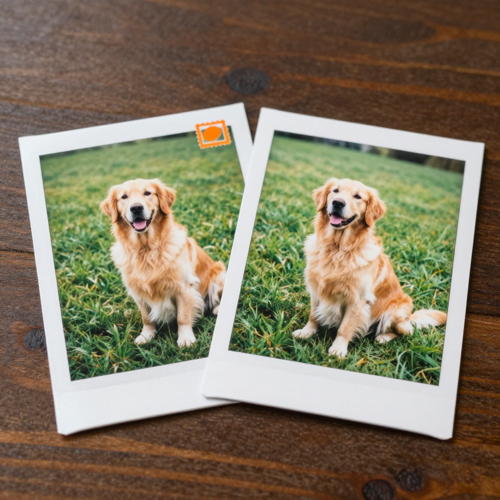
Personal Photo Cleanup
A pet photo or holiday snapshot with an emoji or date stamp over a corner. The edit lifts the mark and rebuilds the grass or fabric behind it while the subject and lighting stay as captured.
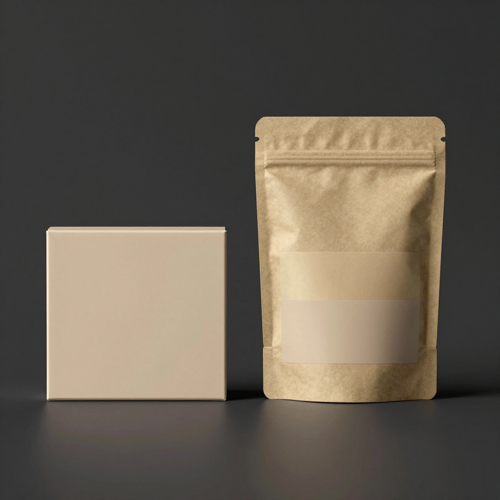
Creative Mockups
A packaging draft still carrying a placeholder color block and a temporary label. Clearing those overlays lets the surface continue, so the mockup reads as finished rather than patched.
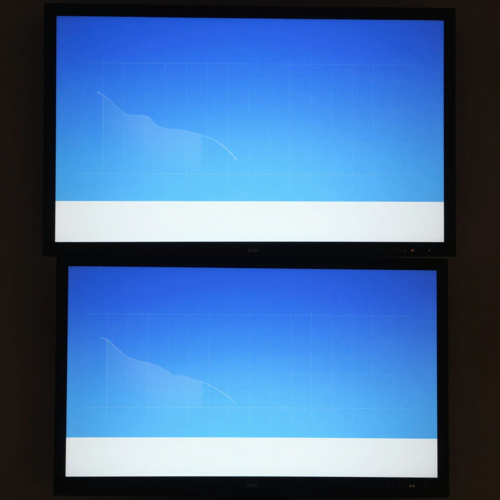
Presentation Images
A slide screenshot with a burned-in caption strip. Removing the overlay and extending the flat background returns a clean deck visual without redrawing the charts.
Overlays an AI Censor Remover Handles Best
Not every cover is the same job. These four input types cover the common requests.
Who Struggles Most With Covered-Up Photos
The overlay is usually temporary: a sticker added for sharing, a label on a draft, a caption baked into a screenshot. All four need the same cleanup.
Everyday Photo Keepers
Travelers, pet owners, and anyone tidying personal albums before printing or sharing. An AI censor remover clears the emoji or doodle added for a quick post and returns a clean copy for the frame.
Designers and Mockup Builders
People preparing packaging, app screens, and layout drafts who need placeholder blocks and temporary labels gone before a client review, without rebuilding the whole asset.
Presenters and Educators
Anyone turning a screenshot or slide into a handout or deck, where a burned-in caption or timestamp distracts from the chart or the point being made.
Hobbyist Photo Restorers
People doing small touch-ups on older scans, where a paint mark or faded sticker sits over a simple background. Gentle, local edits beat a full-image filter here.
AI Censor Remover at a Glance
- Canva
- Google Slides
- PowerPoint
- Figma
- Adobe Photoshop
Why a Plain-Language AI Censor Remover Beats Manual Cloning
Clone stamps smear texture; a wording-driven edit rebuilds the gap from context and returns a candidate to accept or regenerate.
One Sentence, No Brushwork
Instead of painting a selection by hand, an AI censor remover takes a plain-language instruction naming the overlay and its position. The model handles the fill and returns a version you can judge in seconds.
The Fill Is Honest About Its Limits
A mosaic hides pixels the model cannot see, so the result is a plausible reconstruction, not the original detail. Stating that up front keeps the final image believable.
What an AI Censor Remover Reads Around the Gap
Nearby light, texture, perspective, and color are what the fill is built from. Describing the surrounding background gives the model more to work with than a bare removal request.
Before-and-After Review Is Built In
The workflow keeps your source file beside the edit, which makes a smeared patch or shifted edge obvious. Compare at full zoom, then decide whether to keep, reword, or regenerate.
AI Censor Remover Prompts Fit the Job
A sticker on a beach and a caption on a slide need different instructions. Because the edit follows your wording, one prompt continues sand grain while another extends a flat gradient.
The Rest of the Frame Is Protected
The instruction asks the model to leave everything outside the overlay unchanged, so the subject and lighting carry over. Small shifts can still happen, which is why the side-by-side check matters.
What People Say About the Overlay Cleanup
“I used to spend an evening clone-stamping a date stamp off a batch of travel shots, and the wall behind it always came out smeared. One AI censor remover pass later the plaster texture continued cleanly, and I stopped dreading the cleanup before sharing the album.”
“Every client deck used to stall on a mockup that still had a placeholder color block baked in. Now I clear the block with one plain-language instruction, and the flat surface behind it reads as finished instead of patched.”
“My lecture screenshots carried a burned-in subtitle strip I could not crop out without losing the diagram. A short removal prompt rebuilt the plain background behind the text, and the slide finally looked like it belonged in the handout.”
AI Censor Remover Questions, Answered
Real questions about clearing overlays, with two copy-paste prompts and a plain account of what an AI censor remover cannot recover.
What does an AI censor remover actually do?
It removes an overlay you added on a photo — a mosaic, sticker, emoji, caption, text overlay, colored block, doodle, or paint mark — and generates a plausible fill from the visible scene. An AI censor remover edits the image you upload; it does not uncover anything hidden underneath.
Can an AI censor remover recover the original detail behind a mosaic?
No. A mosaic or pixelated block overwrites the original pixels, so that information is not in the file the model reads. An AI censor remover produces a plausible fill that matches nearby light, texture, and perspective, and it can look different from what was there before.
Which images am I allowed to edit?
Only images you own or have permission to edit. An AI censor remover is intended for non-sensitive edits and is not designed to reveal private or intimate content. Confirm your rights before you edit or share a result, especially when a face, a document, or someone else's creative work is involved.
What prompt clears a sticker on a travel photo?
Copy this one: Remove the small cartoon sticker near the bottom-right corner of the beach photo. Rebuild the sand and the soft dune shadow behind it, keeping the same warm late-afternoon light, the grain of the sand, and the horizon line unchanged. Do not alter the people or the sky. The location and background clauses stop the fill from drifting.
Is there a prompt for cleaning a caption off a presentation slide?
Yes, copy this one: Delete the white subtitle bar across the lower third of the slide image. Continue the flat blue gradient and the faint grid behind it, matching the color, spacing, and perspective already visible on the left and right. Keep every icon, chart, and margin outside the bar exactly as they are.
Will the rest of my image stay exactly the same?
Not always. The instruction asks the model to preserve the rest of the frame, but a generative edit can still change small details outside the requested area, so compare the result with your original before you keep it.
What kinds of overlays can I remove?
Mosaics, pixelated areas, black bars, stickers, emojis, captions, text overlays, timestamps, colored blocks, doodles, and paint marks are all fair game, provided the image is yours to edit. Simple backgrounds give cleaner fills; large opaque blocks over faces are hardest.
How do I get a cleaner fill on the first try?
Start with the sharpest source, name exactly what to remove and where it sits, and describe the background behind it. Then review at full size and, if a patch looks smeared, adjust a few words and regenerate.
Is an AI censor remover the same as a privacy or redaction tool?
No. An AI censor remover is a creative cleanup tool for overlays you placed on your own images, not a way to reverse someone else's redaction or expose concealed content. Guessing private details would be unreliable and invasive, and the results should never be treated as factual.
What should I check before downloading the final image?
Compare side by side with the source at full zoom. Confirm the fill matches the surrounding light and texture, that no straight lines or patterns bend, and that nothing outside the overlay shifted. Then view the whole frame at normal size.
Clear the Overlay, Keep the Rest
The light works, the composition works, the subject works, and only a layer you added on top disagrees. Run an AI censor remover edit through Textideo, compare it with your original, and keep the version whose fill belongs to the scene rather than inventing a hidden past.
No credit card required - no sign-up - your original file stays untouched