
A Side by Side Photo Maker Lines Up Two Frames, Not a Timeline
A side by side photo maker places two photos into one frame so a change reads at a glance. It lines up the display area, adds optional labels, and exports one comparison image on Textideo. It cannot prove both shots share a viewpoint, or that a Before frame really came first.
Rated on whether both frames hold the same angle, and whether the words beside them claim only what the pictures can show. No credit card required - no sign-up - your two originals stay on your device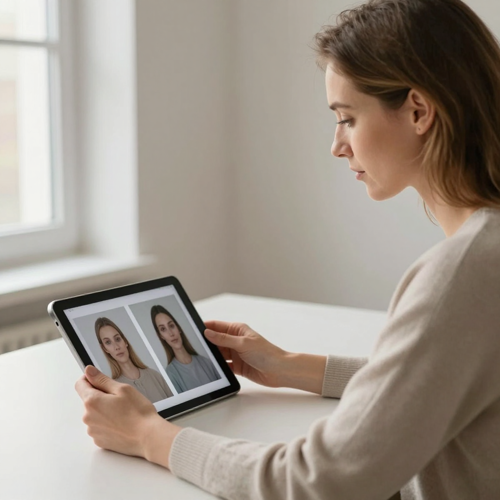
Two Photos, One Frame, One Honest Reading
Skip the manual collage. A side by side photo maker takes two photos you already have and sets them in one shared frame on Textideo. Align the subject, add short labels, and download a pair built to be read, not to prove a result.
Compare Two PhotosThe Hard Part With Side by Side Photo Maker Comparisons
Two photos can sit in one frame and still fail to compare.
Make a Side by Side Photo Maker Comparison in Three Steps
Two photos, one aligned frame, one check before you share.
Add Two Photos to the Side by Side Photo Maker
Load a before and an after, or any two states of the same subject, as separate panels. A side by side photo maker works best when both shots share a position, a distance, and a light. Keep the originals safe.
Align the Subject and Pick a Layout
Zoom and reposition each panel until a stable reference point sits in the same place on both sides: a door frame, a horizon, a product edge, or the eyes in a portrait. Crop to a shared area rather than stretching one image.
Copy the Labels, Check, and Export
Copy these label pairs as-is: Before / After, Day 1 / Week 12, Original / Retouched, or two real dates. Labels name the order, not the result. Confirm both frames still show the compared detail, add a caption if the light needs explaining, then download.
What a Side by Side Photo Maker Actually Lines Up
Three capabilities that decide whether the finished pair reads as a fair comparison or a tidy coincidence.
Side by Side Photo Maker Examples You Can Judge Up Close
Three finished pairs built from photos shot to be compared and labelled to say only what they show.
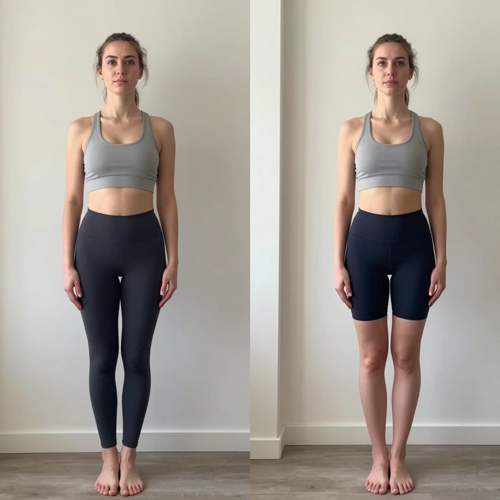
Progress Pairs With a Fixed Viewpoint
A training or skincare sequence shot from the same spot, distance, and light. In a side by side photo maker readers scan the interval; the caption names the gap, not a typical result.
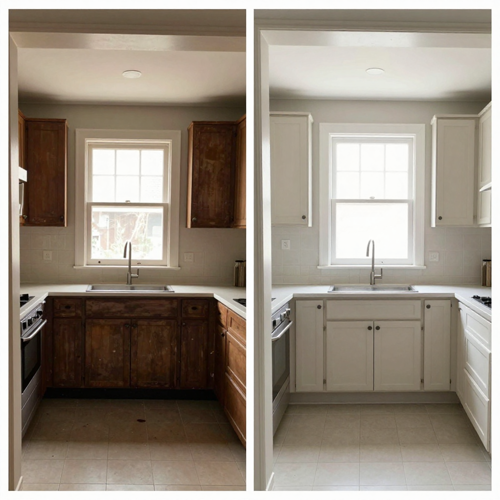
Renovation and Cleaning Reveals
A kitchen framed from the same doorway so the walls line up before and after. If new lighting is part of the job, an honest caption says so instead of letting a brighter frame imply the work.
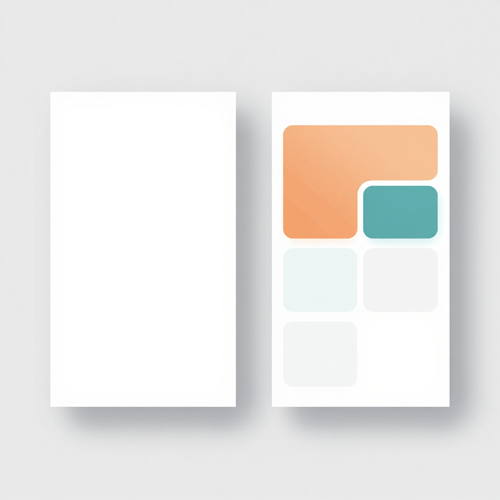
Side by Side Photo Maker Design Revisions
An original interface beside a revised one, or a raw file next to a graded version. Labels can be as plain as two version names. Equal panels keep the comparison about the change.
Layouts That Decide How a Pair Reads
The layout is a reading instruction. These four choices cover what most two-photo comparisons need.
Who Struggles Most With Mismatched Frames
Anyone holding two photos and one honest comparison meets the same three problems: angle, light, and labels.
Fitness Coaches and Trainers
Progress photos persuade only when pose, distance, and light repeat. The maker joins the frames, but the coach still shoots them to match and describes the interval without calling a result typical.
Renovation Contractors and Cleaners
A finished job sells more easily when a client sees the same corner before and after. They need a stable reference point in both shots plus a caption that separates construction changes from brighter exposure.
Beauty and Skincare Creators
Skin and makeup pairs are distrusted fastest, because a change in lighting can look like a change in the result. Keeping light, angle, and retouching identical lets the finished pair show the difference honestly.
E-Commerce Sellers and Photo Retouchers
A product before and after refinishing, or a raw file beside a graded one, makes a clearer listing than two separate images. Give one state more space and readers notice the layout before the work.
Side by Side Photo Maker at a Glance
- Canva
- Google Slides
- PowerPoint
- Figma
- Adobe Photoshop
Why a Side by Side Photo Maker Beats Manual Collaging
A hand-built collage can look right and still compare the wrong things. These six differences are about judgement, not decoration.
A Side by Side Photo Maker Lines Up Pixels, Not Camera Angles
Arranging two panels does not align viewpoints. Cropping evens out the frame, but a moved camera still shifts the wall or face. That keeps a real change from reading as a trick of perspective.
Equal Display Area Beats a Stretched Fit
Stretching one image to match another's proportions changes the subject's shape, which is what a comparison should reveal. A shared crop with independent zoom keeps proportions intact.
Side by Side Photo Maker Layouts Ask Different Questions
A two-panel pair asks readers to see both states at once; a slider asks them to uncover one scene in place. The choice is about how the change should be read.
Labels Describe an Order, Not a Verified Timeline
Before and After claims a sequence no layout can check, since the tool only sees two files. Dates or version labels are more precise. A factual label is safer than a result the pictures cannot prove.
Local Assembly Keeps Private Photos Private
Progress shots, client homes, and treatment results are not images people want to send to a server. A browser-built comparison leaves the source files on the device and hands back one new image.
A Caption Carries What the Frame Cannot
If the light changed, or the after state includes an unrelated improvement, the picture alone will not say so. A short factual line does; treat the caption as part of the comparison.
What People Notice Once the Frames Line Up
“I used to send clients four separate progress shots and still get asked whether the pose had changed. Once both frames sat side by side from the same spot, that question stopped, and the caption could simply name the weeks between them.”
“Every kitchen reveal meant emailing a folder of photos that never showed the same corner twice. One paired image with the doorway lined up now carries the whole job, and I can note the new lighting instead of being accused of a retouch.”
“Comments always asked if I had changed the lamp between shots, even when I had not. Shooting both under the same light and pairing them let the difference read as the work, and a short honest line did the rest.”
Side by Side Photo Maker Questions, Answered
Real questions about pairing two photos, with two copy-and-paste captions and a plain answer on what this maker cannot verify.
What does a side by side photo maker actually do?
It places two photos into one image, side by side or stacked, with a shared frame and optional labels. A side by side photo maker arranges pixels; it does not retouch them, match angles, or confirm an order.
How do I put two photos side by side in one image?
Add the two photos, choose a two-panel layout, and crop until the subject sits at a similar size in both. Add short labels, then export. Keeping both frames visible suits a pair meant to be scanned at once.
Can a side by side photo maker fix photos taken at different angles?
No. Cropping gives both panels the same display area, but it cannot correct a difference in angle, distance, or lighting. If the camera moved, the door frame lands in a different spot in each panel.
Should I use a side by side layout or a slider?
Use side by side when readers see both photos at once and scan left to right; use a slider when a divider wipes across one shared frame. The choice is a whole pair or one scene uncovered.
What caption can I copy for a fitness progress pair?
Copy this caption as-is: Same camera spot, same light, twelve weeks between these two frames. Nothing retouched; the pair records the interval rather than promising a result. Swap in your own timeline and keep the same-spot clause.
Is there a caption I can copy for a renovation reveal?
Copy this caption as-is: Same doorway, same camera height, shot on [start date] and [end date]. The after frame includes new lighting installed during the work, so the brightness change is part of the project, not a retouch. Replace the two dates and keep that note.
Do Before and After labels prove a change happened?
No. A label states an order that a side by side photo maker cannot check, because the tool only receives two files. Confirm the sequence yourself and avoid claiming the images prove a cause or a typical result; dates are more honest than a blanket Before and After.
Are my photos uploaded to a server?
The comparison is assembled in the browser, so the photos need not leave your device. Local assembly is worth choosing when the pair shows a client, a home, or a body. Check the export before you share it.
Which image formats and layouts work best?
PNG, JPG, and WebP all work as inputs, and the comparison exports as one image file. Pick a two-panel layout for wide feeds, a stacked one for tall phone screens. Keep the gap thin so the pair reads as one.
What should I check before publishing the comparison?
Confirm the order, the labels, and that the crop still shows the detail you want compared. Check that both photos share an angle, distance, and light. A side by side photo maker gives a clear presentation; the honest check is yours.
Put the Two Frames Together, Then Check the Claim
The angle works, the light works, and the two photos are already yours. Build a side by side photo maker pair through Textideo, keep both originals, and publish only a comparison whose labels you can stand behind. No sign-up, no upload, no retouch needed to make the point.
No credit card required - no sign-up - your two originals stay on your device